
Автор: Амиль | Дата публикации: 15.03.2019 | В разделе: Windows инструкции
С проблемой несовместимости документов с расширением *.doc и *.docx сталкиваются все пользователи ПК, работающие в текстовом редакторе. Особые трудности с открытием файлов возникают при пересылке данных, когда отправитель не знает, какая именно версия Microsoft Word используется получателем. Чтобы избежать недоразумений, передают объекты в формате *.pdf. Документы с таким расширением обязательно откроются на ПК. Выясним, как преобразовать Word в PDF различными способами.
Способ №1: используя Microsoft Office
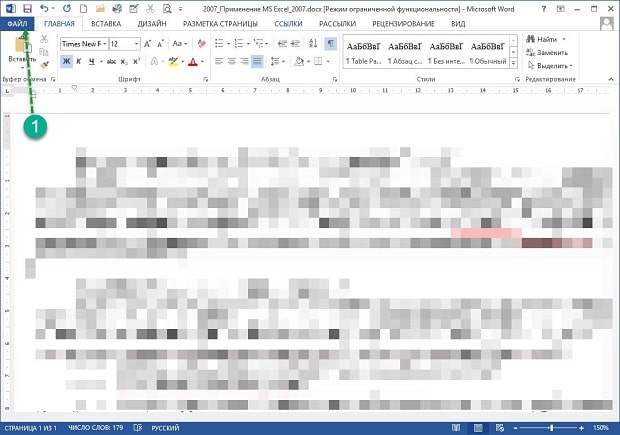
Работая с текстовым редактором Microsoft Word, можно научиться сохранять данные в различных форматах. В перечне типов файлов есть и PDF. Алгоритм сохранения данных следующий:
- Открыть файл Word;
- В горизонтальном меню найти блок «Файл», перейти;

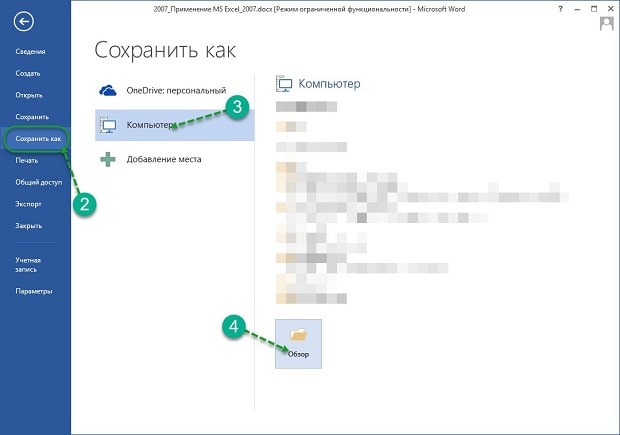
- Выбрать пункт «Сохранить как»;
- Указать «Компьютер»;
- Внизу списка найти и нажать кнопку «Обзор»;
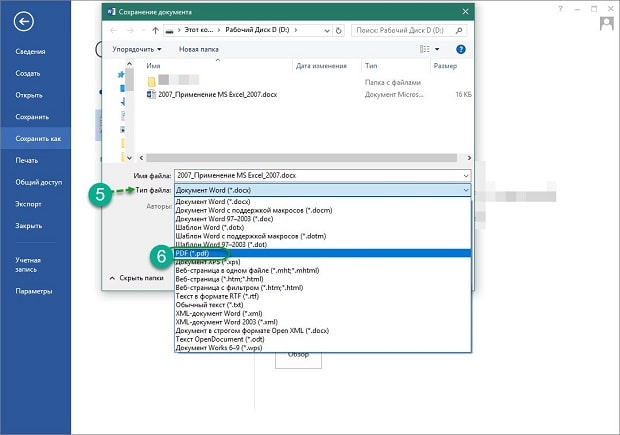
- В новом окне найти поле «Тип файла» и Открыть стрелочкой меню;
- Выбрать из списка PDF и нажать «Сохранить».
Далее проверить, что в указанной при сохранении объекта папке появился новый документ с расширением *.pdf. Пользоваться встроенным функционалом Microsoft Office и удобно, и безопасно.
Способ №2: используя онлайн-сервисы
Если с пересохранением в редакторе Microsoft Office возникли проблемы, можно воспользоваться специальными онлайн ресурсами. Поиск в Интернете выдаст огромное количество сервисов. Но не все они окажутся полезными и понятными. Среди русскоязычных ресурсов с понятным интерфейсом и быстрой конвертацией, можно выделить следующие три:
- https://www.pdf2go.com/ru/word-to-pdf;
- https://pdf.io/ru/doc2pdf/;
- https://smallpdf.com/ru/word-to-pdf.
Наиболее простым считается сервис pdf.io/ru/doc2pdf. У него максимально облегченный интерфейс — всего одна активная кнопка. Есть возможность загружать объекты как с дисков компьютера, так и с Google Диск, Dropbox и др. Алгоритм работы с онлайн сервисом следующий:
- Перейти по ссылке;
- Нажать на кнопку «Выбрать файл»;
- В новом окне указать путь к документу, указать «Открыть»;
- Нажать на кнопку «Скачать».
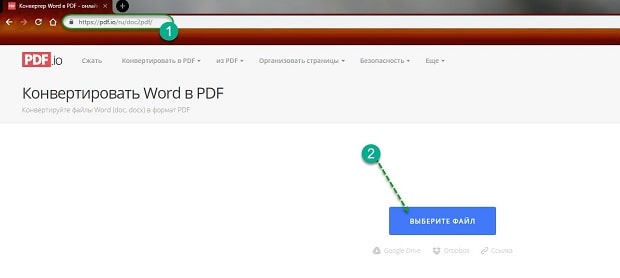

Сохраненный в новом формате объект попадет в папку «Загрузки», если при настройке браузера не был указан иной путь хранения данных. Время конвертирования зависит от размера исходного документа. Если процедура занимает несколько минут, это нормально. Этим способом преобразования данных из *.docx в *.pdf можно воспользоваться при стабильном доступе к сети.
Способ №3: используя сторонние программные продукты
Для того чтобы преобразовать ПДФ в Ворд, можно применять функциональное вспомогательное программное обеспечение. Оно устанавливается на ПК отдельно. Среди предлагаемых разработчиками программ, внимание стоит обратить на Smallpdf. Софт распространяется в сети бесплатно, имеет стандартную инсталляцию и дружелюбный интерфейс. Новичкам в вопросах конвертации данных будет несложно разобраться с меню программного продукта. Но все-таки главное его преимущество — независимость от Интернета.
Официальный сайт для загрузки: https://smallpdf.com/ru/desktop
- Скачайте и установите программу;
- В блоке слева указать «Office to PDF»;
- В меню «File» выбрать пункт «Open» или в центральном блоке «Choose Files»;
- В новом окне указать путь к объекту и выбрать «Select»;
- Нажать на кнопку «Convert 1 file».
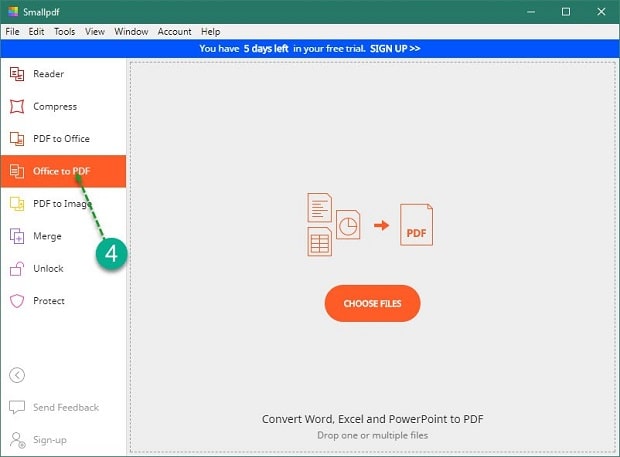
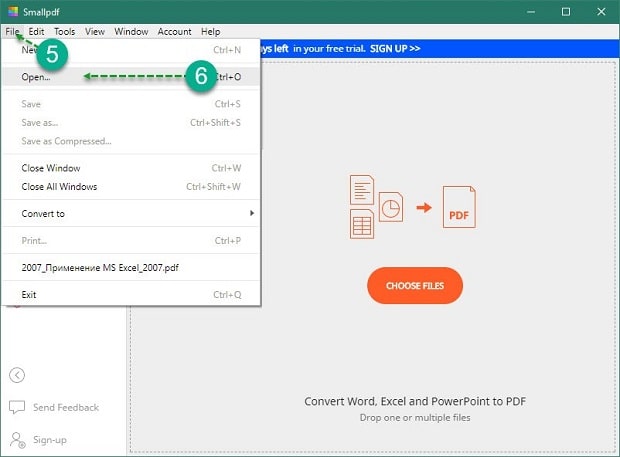
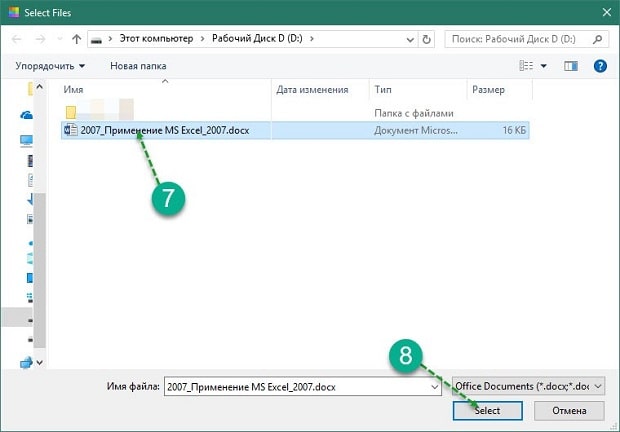
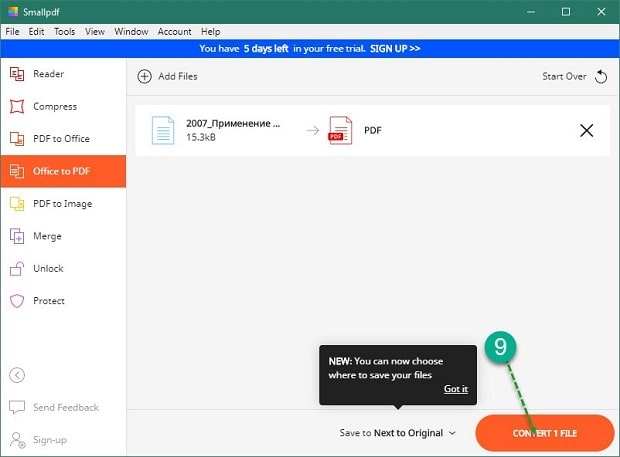
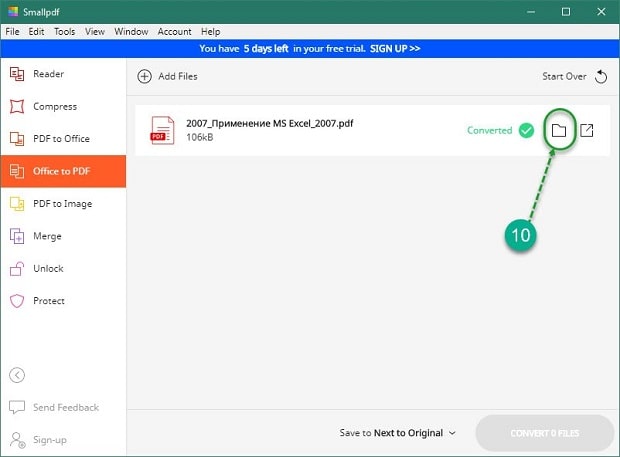
Конвертация выполнится в течение нескольких секунд. Объект пересохраняется в новом формате в ту же папке, где находится оригинал (если не выбран новый путь). Если местоположение документа забыто, программа подскажет, куда была сохранена информация. Для этого нужно нажать в центральном блоке на иконку папки рядом с названием преобразованного файла.
Способ №4: используя Google Диск
Очень удобный способ пересохранения документов Microsoft Word в ПДФ. Но он зависим от стабильной работы Интернета. Если доступ к сети есть, аккаунт зарегистрирован, конвертация займет не больше 2 минут. Действуют так:
- Войти в аккаунт Google;
- Перейти в Google Диск;
- В левом блоке меню нажать на кнопку «Создать»;
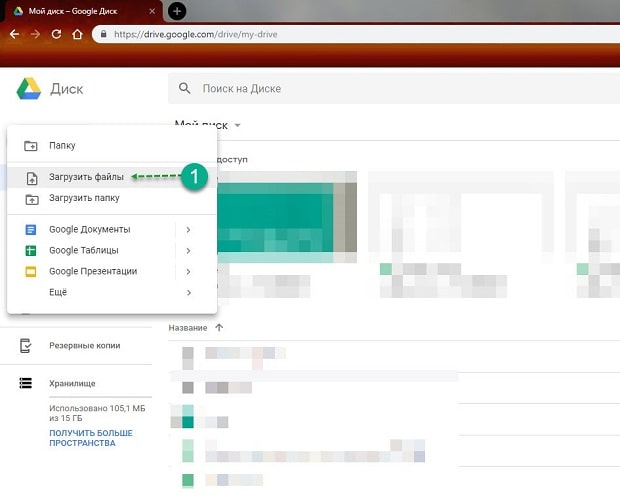
- Выбрать «Загрузить файлы» и открыть добавленный объект;
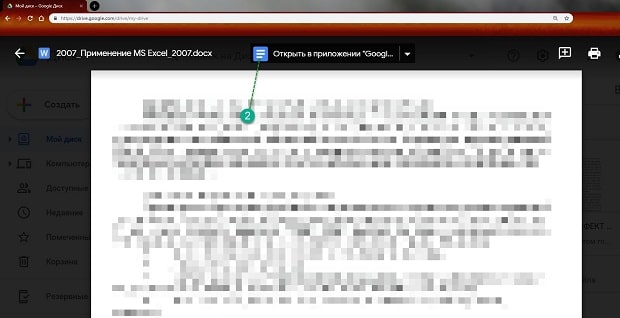
- Нажать на кнопку «Открыть в приложении» (кнопка расположена по середине в верхней части);
- Перейти в меню «Файл», далее Выбрать «Скачать как» и указать «Документ PDF».
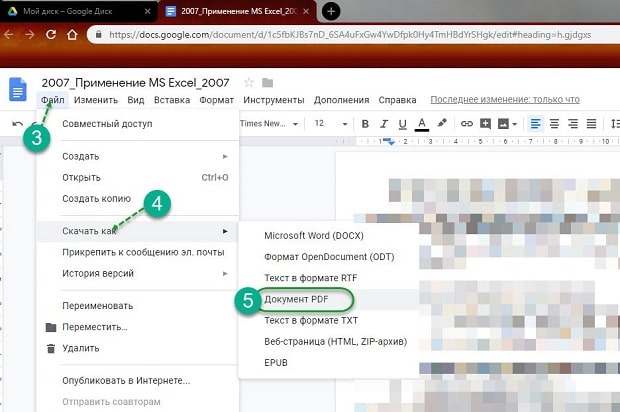
Файл отправится в загрузку и будет доступен вам в нужном формате. Важные и объемные документы лучше преобразовывать при помощи встроенной функции Microsoft Office или Google Диск. Использование этих ресурсов не приведет к потере данных, сократит время на установку дополнительного софта.
Другие инструкции:
Онлайн PDF-конвертер
бесплатно в любом месте
Конвертировать в PDF просто
Перетащите файл в окно PDF2Go или загрузите из Dropbox, Google Диска или компьютера, а затем выберите направление преобразования.
Если хотите преобразовать файл в PDF, вы сможете использовать функцию OCR. Если у вас есть отсканированный документ, используйте OCR, чтобы распознать текст и сохранить в формате PDF. Таким образом, вы можете получить текст из изображения.
Нажмите на «Сохранить изменения», а мы сделаем всё остальное!
Используйте онлайн-конвертер
Если вы используете бесплатный конвертер для преобразования файлов в PDF, подумайте о безопасности. При работе с онлайн-конвертером скачивать или устанавливать подозрительные программы не придётся.
Забудьте о вредоносных программах, вирусах и нехватке места не диске. На сайте PDF2Go вам не придётся ничего скачивать кроме готового PDF-файла.
Зачем конвертировать в PDF
PDF — популярный формат. Его основные преимущества — оптимизация для печати и неизменное форматирование, благодаря которому PDF-файлы выглядят одинаково на всех устройствах.
Многие конвертируют Word в PDF по этой причине. Благодаря OCR можно извлечь текст из изображений, например, при конвертации JPEG в PDF. Для этого надо поставить галочку в поле «Оптическое распознавание символов».
Конвертируйте у нас — это безопасно!
Не беспокойтесь о безопасности. Конвертер PDF2Go обеспечивает надёжную защиту загруженных файлов.
Право доступа к документам есть только у вас. Мы не храним файлы, и через некоторое время они автоматически удаляются с сервера.
Для получения дополнительной информации ознакомьтесь с Политикой конфиденциальности.
Что можно преобразовать в PDF
Документы:
DOC, DOCX, ODT, RTF, TXT и другие
Электронная книга:
AZW, EPUB, MOBI и другие
Изображения:
GIF, JPG, PNG, SVG, TIFF и другие
Презентации:
ODP, PPT, PPTX
Электронные таблицы:
CSV, ODS, XLS, XLSX
Преобразовать файл в формат PDF онлайн
Название PDF2Go говорит само за себя: PDF-конвертер работает с любого устройства и не требует установки дополнительных программ. Просто используйте браузер.
Кроме того, PDF2Go — это бесплатный PDF-конвертер. Это означает, что вам не надо ни за что платить!

Download Article
An easy-to-use guide to turn your Word documents into viewable PDFs
Download Article
Do you want to convert your Word document into an easy-to-send PDF file? PDFs are compatible with all platforms, so turning your Word document into a PDF ensures that more people can open the file. It’s incredibly easy to convert a Word document to PDF—we’ll show you how to do it on any PC or Mac!
-
1
Open the Microsoft Word document. Double-click the Word document to open it in Microsoft Word.
- If you haven’t yet created the document, open Word, then click Blank document and create the document as needed before proceeding.
-
2
Click File. It’s in the top-left corner of the Word window. Doing so opens a pop-out window.
Advertisement
-
3
Click Export. This option is in the left-hand column of options. You should see several new options appear in the middle of the window.
-
4
Click Create PDF/XPS Document. It’s in the upper-left corner of the window.
-
5
Click Create PDF/XPS. This option is in the middle of the window. Doing so prompts a pop-up window.
-
6
Select a save location. On the left side of the window, click the folder in which you want to store the PDF version of your Word file.
- Since the PDF is a different file type than the Word document, you can store the PDF in the same file location as the Word file.
- You can also enter a new file name in the «File name» text box if you like.
-
7
Click Publish. It’s in the bottom-right corner of the window. This will create a PDF copy of your Word document in your specified location.


Advertisement
-
1
Open the Microsoft Word document. Double-click the Word document to open it in Microsoft Word.
- If you haven’t yet created the document, open Word, then click Blank Document and create the document as needed before proceeding.
-
2
Click File. It’s in the upper-left corner of your Mac’s screen. A drop-down menu will appear.
-
3
Click Save As…. This option is in the drop-down menu. Doing so opens a new window.
-
4
Enter a file name. Type whatever you want to name the PDF into the «Name» text box at the top of the window.
-
5
Select a save location. On the left side of the window, click the folder in which you want to save your PDF.
-
6
Click the «File Format» text box. It’s at the bottom of the window. A drop-down menu will appear.
-
7
Click PDF. This option is in the «Export» section of the drop-down menu.
- You may have to scroll down in the drop-down menu to see this option.
-
8
Click Export. It’s a blue button in the bottom-right corner of the window. Doing so saves your PDF in the specified file location.


Advertisement
-
1
-
2
Click Choose file. It’s in the middle of the SmallPDF page. Doing so will open either a File Explorer (Windows) or a Finder (Mac) window.
-
3
Select your Word document. Go to your Word document’s location, then click the Word document to select it.
-
4
Click Open. It’s in the bottom-right corner of the window. Doing so will upload the Word document to SmallPDF.
- On a Mac, you may click Choose here instead.
-
5
Click Download File. This option is in the lower-left side of the SmallPDF page. Your PDF will download onto your computer, though you may have to select a storage location and/or confirm the download depending on your browser’s settings.
- It may take a few seconds for this option to appear if your Word document is large or your Internet connection is slow.


Advertisement
-
1
Open Google Drive. Go to https://drive.google.com/ in your computer’s web browser. This will open your Google Drive page if you’re logged in.
- If you aren’t logged in, click Go to Google Drive, then enter your email address and password when prompted.
-
2
Click + New. It’s in the top-left side of the Google Drive window. A drop-down menu will appear.
-
3
Click File upload. It’s in the drop-down menu. Doing this will open either a File Explorer (Windows) or a Finder (Mac) window.
-
4
Select your Word document. Go to your Word document’s location, then click the Word document to select it.
-
5
Click Open. It’s in the bottom-right corner of the window. Your Word document will upload to Google Drive.
- On a Mac, you may click Choose here instead.
-
6
Open the Word document. Once the Word file finishes uploading to Google Drive, double-click it in Google Drive to open it in your browser.
-
7
Click File. It’s in the upper-left side of the window. Doing so prompts a drop-down menu.
- On a Mac, make sure you’re clicking File in your browser window and not in the menu bar at the top of the screen.
-
8
Select Download as. This option is in the middle of the drop-down menu. Selecting it prompts a pop-out menu.
-
9
Click PDF document. It’s in the pop-out menu. A PDF version of the Word document will immediately download onto your computer.
- Depending on your browser’s settings, you may have to confirm the download and/or select a save location before the file will actually download.


Advertisement
Add New Question
-
Question
Why doesn’t Microsoft Word give me the option to «Save as PDF» in the file menu?

A special type of software (technically called add-in) has the ability to convert Microsoft Word documents to PDF. However, Word 2007 does not include this add-in by default. To convert to PDF with Microsoft Word 2007, you have to download the add-in from Microsoft’s website.
-
Question
I need to convert a PDF file to a Microsoft Word document. Is there a way to do this?
Open up your PDF document and select «Save as —> Word Document.» You’ll need to clean it up afterwards (remove paragraph signs, reformat, etc.).
-
Question
How do I fix the glitches and formatting errors that show up in the new PDF file?
The latest versions (after MS Office 2007) allow you to save the document as a pdf, thus avoiding formatting errors. Go to Files->Save As and select «.pdf format» from Save As Type. Click to save.


See more answers
Ask a Question
200 characters left
Include your email address to get a message when this question is answered.
Submit
Advertisement
-
To open your PDF in your computer’s default PDF reader, simply double-click it; if you have more than one PDF reader, you may be prompted to select one after double-clicking the PDF.
-
You can also use the «Save as» menu to convert your Word document to a PDF on a Windows computer.
Advertisement
-
When converting sensitive documents (e.g., credit card statements), avoid using SmallPDF. While their site is secure, it’s best to keep such documents offline as much as possible.
Advertisement
About This Article
Article SummaryX
1. Go to https://smallpdf.com/word-to-pdf in your web browser.
2. Click Choose file.
3. Double-click the Word file you want to convert.
4. Click Download File when the PDF is available.
Did this summary help you?
Thanks to all authors for creating a page that has been read 4,760,800 times.
Is this article up to date?
Download Article
An easy-to-use guide to turn your Word documents into viewable PDFs
Download Article
Do you want to convert your Word document into an easy-to-send PDF file? PDFs are compatible with all platforms, so turning your Word document into a PDF ensures that more people can open the file. It’s incredibly easy to convert a Word document to PDF—we’ll show you how to do it on any PC or Mac!
-
1
Open the Microsoft Word document. Double-click the Word document to open it in Microsoft Word.
- If you haven’t yet created the document, open Word, then click Blank document and create the document as needed before proceeding.
-
2
Click File. It’s in the top-left corner of the Word window. Doing so opens a pop-out window.
Advertisement
-
3
Click Export. This option is in the left-hand column of options. You should see several new options appear in the middle of the window.
-
4
Click Create PDF/XPS Document. It’s in the upper-left corner of the window.
-
5
Click Create PDF/XPS. This option is in the middle of the window. Doing so prompts a pop-up window.
-
6
Select a save location. On the left side of the window, click the folder in which you want to store the PDF version of your Word file.
- Since the PDF is a different file type than the Word document, you can store the PDF in the same file location as the Word file.
- You can also enter a new file name in the «File name» text box if you like.
-
7
Click Publish. It’s in the bottom-right corner of the window. This will create a PDF copy of your Word document in your specified location.
Advertisement
-
1
Open the Microsoft Word document. Double-click the Word document to open it in Microsoft Word.
- If you haven’t yet created the document, open Word, then click Blank Document and create the document as needed before proceeding.
-
2
Click File. It’s in the upper-left corner of your Mac’s screen. A drop-down menu will appear.
-
3
Click Save As…. This option is in the drop-down menu. Doing so opens a new window.
-
4
Enter a file name. Type whatever you want to name the PDF into the «Name» text box at the top of the window.
-
5
Select a save location. On the left side of the window, click the folder in which you want to save your PDF.
-
6
Click the «File Format» text box. It’s at the bottom of the window. A drop-down menu will appear.
-
7
Click PDF. This option is in the «Export» section of the drop-down menu.
- You may have to scroll down in the drop-down menu to see this option.
-
8
Click Export. It’s a blue button in the bottom-right corner of the window. Doing so saves your PDF in the specified file location.
Advertisement
-
1
-
2
Click Choose file. It’s in the middle of the SmallPDF page. Doing so will open either a File Explorer (Windows) or a Finder (Mac) window.
-
3
Select your Word document. Go to your Word document’s location, then click the Word document to select it.
-
4
Click Open. It’s in the bottom-right corner of the window. Doing so will upload the Word document to SmallPDF.
- On a Mac, you may click Choose here instead.
-
5
Click Download File. This option is in the lower-left side of the SmallPDF page. Your PDF will download onto your computer, though you may have to select a storage location and/or confirm the download depending on your browser’s settings.
- It may take a few seconds for this option to appear if your Word document is large or your Internet connection is slow.
Advertisement
-
1
Open Google Drive. Go to https://drive.google.com/ in your computer’s web browser. This will open your Google Drive page if you’re logged in.
- If you aren’t logged in, click Go to Google Drive, then enter your email address and password when prompted.
-
2
Click + New. It’s in the top-left side of the Google Drive window. A drop-down menu will appear.
-
3
Click File upload. It’s in the drop-down menu. Doing this will open either a File Explorer (Windows) or a Finder (Mac) window.
-
4
Select your Word document. Go to your Word document’s location, then click the Word document to select it.
-
5
Click Open. It’s in the bottom-right corner of the window. Your Word document will upload to Google Drive.
- On a Mac, you may click Choose here instead.
-
6
Open the Word document. Once the Word file finishes uploading to Google Drive, double-click it in Google Drive to open it in your browser.
-
7
Click File. It’s in the upper-left side of the window. Doing so prompts a drop-down menu.
- On a Mac, make sure you’re clicking File in your browser window and not in the menu bar at the top of the screen.
-
8
Select Download as. This option is in the middle of the drop-down menu. Selecting it prompts a pop-out menu.
-
9
Click PDF document. It’s in the pop-out menu. A PDF version of the Word document will immediately download onto your computer.
- Depending on your browser’s settings, you may have to confirm the download and/or select a save location before the file will actually download.
Advertisement
Add New Question
-
Question
Why doesn’t Microsoft Word give me the option to «Save as PDF» in the file menu?
A special type of software (technically called add-in) has the ability to convert Microsoft Word documents to PDF. However, Word 2007 does not include this add-in by default. To convert to PDF with Microsoft Word 2007, you have to download the add-in from Microsoft’s website.
-
Question
I need to convert a PDF file to a Microsoft Word document. Is there a way to do this?
Open up your PDF document and select «Save as —> Word Document.» You’ll need to clean it up afterwards (remove paragraph signs, reformat, etc.).
-
Question
How do I fix the glitches and formatting errors that show up in the new PDF file?
The latest versions (after MS Office 2007) allow you to save the document as a pdf, thus avoiding formatting errors. Go to Files->Save As and select «.pdf format» from Save As Type. Click to save.
See more answers
Ask a Question
200 characters left
Include your email address to get a message when this question is answered.
Submit
Advertisement
-
To open your PDF in your computer’s default PDF reader, simply double-click it; if you have more than one PDF reader, you may be prompted to select one after double-clicking the PDF.
-
You can also use the «Save as» menu to convert your Word document to a PDF on a Windows computer.
Advertisement
-
When converting sensitive documents (e.g., credit card statements), avoid using SmallPDF. While their site is secure, it’s best to keep such documents offline as much as possible.
Advertisement
About This Article
Article SummaryX
1. Go to https://smallpdf.com/word-to-pdf in your web browser.
2. Click Choose file.
3. Double-click the Word file you want to convert.
4. Click Download File when the PDF is available.
Did this summary help you?
Thanks to all authors for creating a page that has been read 4,760,800 times.